In today’s digital age, connectivity between devices has become essential for user experience. Tablets and televisions are no exception to this interoperability rule. Often, users face difficulties when trying to link these two types of devices to benefit from a large screen display or to share multimedia content. The issues can range from simple connection failures to more complex compatibility problems. Understanding the common causes of these malfunctions and the methods to remedy them is fundamental to fully leverage the features offered by our modern gadgets.
Troubleshooting Connection Issues Between Tablet and Television
When attempting to connect your tablet to your television, various problems can arise, whether it’s a wireless or wired connection. First, check the compatibility of both devices. Technologies such as WiFi, Chromecast, AirPlay, or Miracast allow for wireless linking, provided your hardware is equipped with these features and your network is operational. If the issue persists, ensure that your WiFi network is stable and that the devices are properly configured to communicate with each other. Sometimes, simply restarting your router or devices can resolve an apparently unexplained connection issue.
For a wired connection, you can use an tablet HDMI cable or a USB adapter if your tablet does not have a built-in HDMI port. Make sure the cable is in good condition and properly connected to the corresponding ports on both the tablet and the television. On some tablet models, it may be necessary to activate the HDMI output or configure the external display through the settings or a dedicated app. If your television screen remains black or does not recognize the tablet, check if the HDMI port on the television is correctly selected as the input source.
Troubleshooting methods also vary depending on the tablet’s operating system. Users of Apple devices can turn to AirPlay, while those on Android can utilize technologies like Chromecast or Miracast. Be sure to refer to the instructions provided by the manufacturer of your tablet and television, as each brand and model has its specifics. In case of doubt, consult the support forums for appliances or contact the manufacturers’ customer service for assistance.
Detailed Steps to Effectively Connect Your Tablet to Your Television
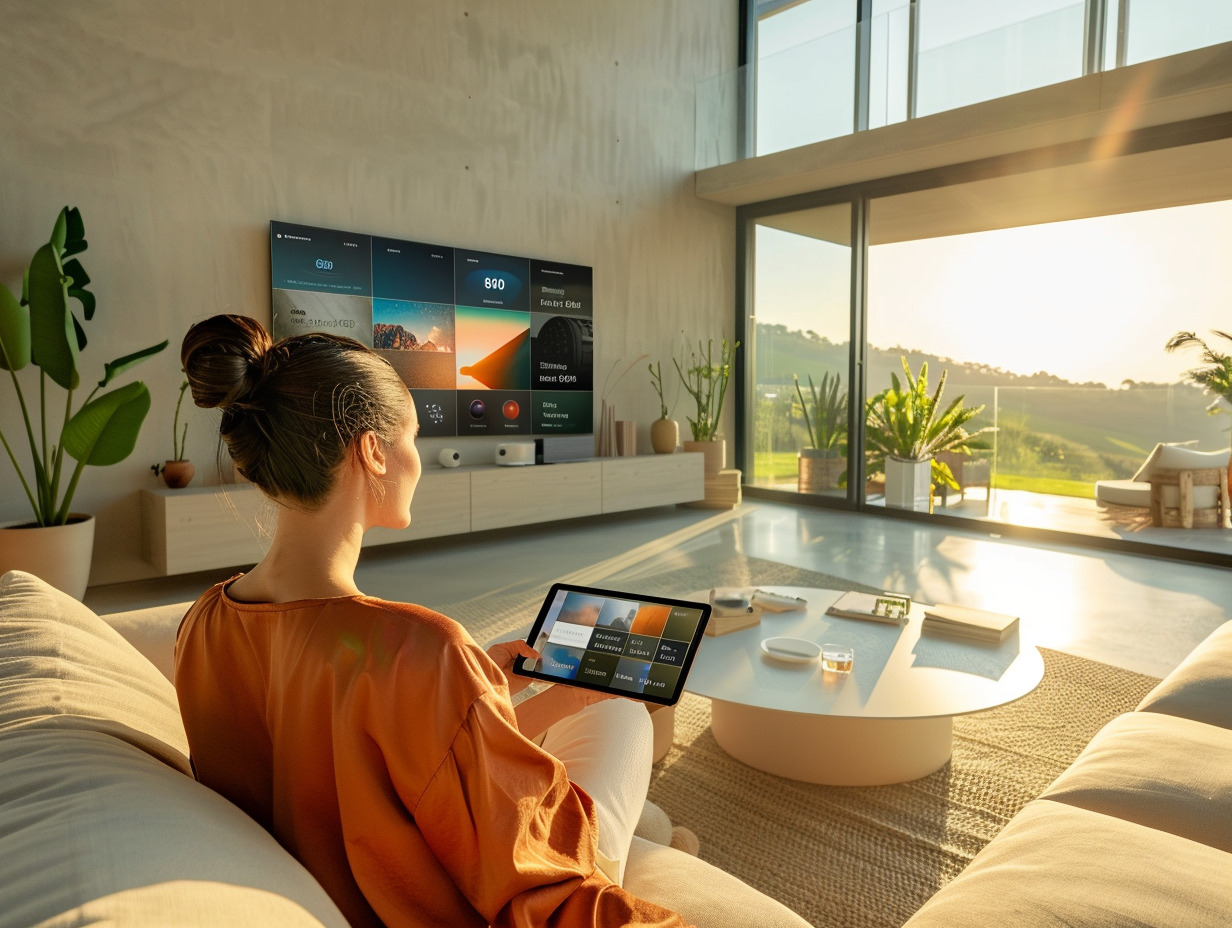
To establish a wireless connection via WiFi, start by enabling WiFi on your tablet and ensure it is connected to the same network as your television. On your television, access the settings menu and select the wireless connection or screen mirroring option, depending on your device model. If you are using Chromecast or Miracast, follow the on-screen instructions to connect the two devices. For Apple device users, enable AirPlay and select your television from the list of available devices.
If you prefer a wired connection, obtain a HDMI cable or a USB-HDMI adapter if your tablet does not have an HDMI port. Plug one end of the cable into the HDMI port of your tablet or adapter and the other end into a free HDMI port on your television. On your tablet, a notification or setting may appear to confirm the wired connection; validate if necessary.
Once the cable is connected, turn on your television and use the remote to access the video input selection menu. Locate the HDMI port to which your tablet is connected and select it as the source. Your tablet’s screen should then reflect on your television, allowing you to view your content on a larger screen.
To ensure a seamless connection, it may be necessary to update the software on your devices. Check for available updates for your tablet and television in their respective settings. An up-to-date version of the operating system and casting apps contributes to better compatibility and an enhanced user experience. Take the time to browse the settings and customize the display options according to your preferences for a smooth integration between your tablet and television.